> For the complete documentation index, see [llms.txt](https://manual.simhubdash.com/llms.txt). Markdown versions of documentation pages are available by appending `.md` to page URLs; this page is available as [Markdown](https://manual.simhubdash.com/motion-addon/motion-profile-tuning.md).
# Motion profile tuning
This guide explains how to tune a motion profile step by step, starting from a clean base and gradually layering effects in a controlled and predictable way.
### Prerequisite: Start from a Clean Baseline
Before tuning, reset all gains to remove hidden scaling:
* Set **Global Motion Gain** to **100%**
* Set **Effect Gain** for each motion effect to **100%**
This ensures you see the true response of your input tuning without amplification or damping. You'll reintroduce gain if needed later, but start clean.
### Basic Effect Tuning
#### Adjust the Motion Scaling
> The most important step in tuning.
Motion scaling defines how game data is turned into movement.
> **"Take up to this much from the game → give up to that much on the platform."**
Each effect has:
* **Input Limit**: how much data it expects from the game
* **Motion Range**: how far the platform can move for that effect
**🡐 Input Limit – Responsiveness**
* **Lower input** → more responsive (max motion reached quickly)
* **Higher input** → less responsive (requires more signal for full movement)
Tuning input is a balance between **reactivity** and **saturation risk**.
**🡒 Motion Range – Motion Contribution**
* Higher range = more physical movement
* Lower range = smaller effect presence (more room for others to mix)
This defines **how strong the effect feels,** not how quickly it reacts.
#### The Rule of 3 : A Practical Example
Let’s say the car reaches ±6° pitch while braking:
* Set **Input Limit** = 6
* Set **Motion Range** = 2 or 3
That gives realistic motion, avoids saturation, and leaves headroom for other effects like surge or heave.
**Pose-Based Effects (Pitch & Roll)**
For **Pitch** and **Roll**, game values represent a physical pose and your simulator mirrors that.
> Keep **Input Limit ≥ Motion Range**. You're not boosting the pose, just reproducing it.
This prevents exaggerated motion and keeps the experience grounded.
#### Tune the Smoothing
Smoothing controls how clean or raw the motion feels:
* **Lower smoothing** = fast, detailed, potentially jittery
* **Higher smoothing** = soft, clean, but may feel lazy
Start with moderate values and adjust based on the effect type:
* Pitch/Roll: usually benefit from some smoothing
* Heave/Road vibration: better with less smoothing
#### Soft Limiter (Per-Effect)
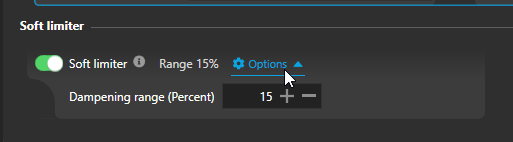
The **Soft Limiter** applies to each effect individually.
It fades out motion smoothly when an effect reaches its limit, avoiding harsh clipping.
**When to Use:**
* **Rare overflow?**\
→ Set a **lower range** (10–15%) for gentle damping
* **Frequent overflow?**\
→ Use a **higher range** (up to 50%) for smooth cushioning
> Use this to clean up individual effects. Not for total platform protection.
**Flight Sim Tip:**
Especially helpful for **Pitch and Roll** in flight sims **without washout** — allows continuous attitude motion without hitting a hard stop.
#### Repeat – Add Effects One by One
Enable your next effect and isolate it for tuning:
* Use **"Isolate this effect"** while tuning
* Repeat: **scale → smooth → test in mix**
Un-isolate when ready and see how it blends with existing effects.
> Rebalance if one effect dominates or disappears in the mix.
### Final Balance
Once all effects are active:
* If everything feels too strong, reduce the **Global Motion Gain**
* Avoid pushing each effect to 100% travel
* Use **Soft Limiters** to soften individual saturation
* Let **Pose Overflow / IK** handle global motion limits
### Flight Sim Specific : Washout Resetting Pose Safely
In flight simulators, aircraft can stay pitched or rolled for long periods. Without a reset mechanism, the simulator can eventually run out of travel. That’s where **Washout** comes in.
Washout is available on eligible effects and provides a way to **gradually return the platform to center** — even if the game is still in a pitched or rolled state.
> Think of it as a slow recentering force that works behind the scenes, invisible to the pilot.
#### How It Works
* The effect continues to respond as usual
* But over time, the **platform recenters** gradually when motion is sustained
* The washout speed determines **how fast this return happens**
#### Tuning Washout
Washout must be fast enough to prevent platform overflows… But **slow enough to be invisible** — you should never feel the platform "pulling back."
Typical tuning advice:
* Use on **Pitch**, **Roll**, and **Yaw** in flight sims
* Tune for a **gentle return** (slow smoothing) to keep realism
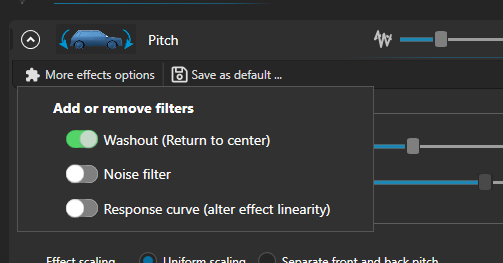
Washout can be added in "More effects option"
> Washout is often unnecessary in racing — but essential in aircraft, where attitudes are held longer.
### Game-to-Game Portability
Good news: if you've followed this tuning method, your effects are already **based on real-world motion scales,** not arbitrary values.
That means switching to a different game of the **same category** (e.g. racing sim to racing sim) **won’t require starting from scratch**.
#### 🛠 What to Adjust:
* **Input Limits** may need light tweaking depending on how each game outputs data.
* **Smoothing** might be worth adjusting if the new game is noisier or more stable.
> ⚠️ Switching between **very different game types** (e.g. car sims vs flight sims) will likely require more than a light touch, especially due to sustained motion, lack of washout, or fundamentally different effect types.
As long as you're within the same simulation domain and the game provides meaningful telemetry, most of your tuning should carry over cleanly with just a quick adjustment pass.
### Understanding Gains and Global Controls
Once your tuning is solid, it's useful to understand how gain controls work across the system.
#### Gains Are Multiplicative
The final output of any effect is the result of **multiple gain layers multiplied together**. Understanding this helps avoid confusion when motion feels stronger or weaker than expected.
Gains are organized by hardware category:
* **Motion Gain** (Global) → Affects all motion platform output
* **Haptics Gain** → Affects tactile output (vibration, rumble, etc.)
* **Belt Gain** → For specific belt tensioner systems (if present)
Each category then has its own sub-gains. For example:
* **Motion**\
**Per platform component** (e.g. surge platform vs traction loss platform)\
Recommended: keep these at **100%** for clarity, and do your tuning via effect scaling or the global gain.
* **Effect Gain**\
Found on each effect block : Allows you to rebalance one effect's presence after scaling is tuned
#### Global Motion Smoothing
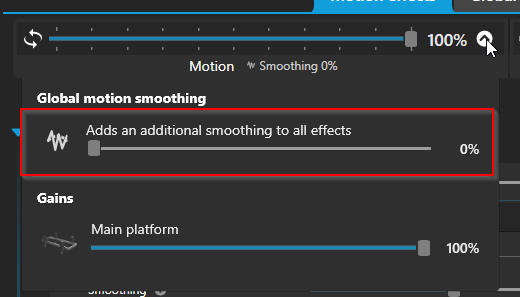
Above all effects, there’s also a **Global Motion Smoothing** setting. This adds a uniform extra layer of smoothing on top of all motion effects — useful for quickly taming a profile that feels too sharp or aggressive.
Start low (10-20%) to soften things slightly without losing detail. You can always increase if needed.
### Bonus Tips
* Use **Live Charts** to visualize how effects behave in real-time
* Test in multiple driving scenarios (braking, curbs, slopes)
* A great profile is not about size — it’s about **clarity**, **blend**, and **control**
### Motion effects reference
SimHub automatically filters out any motion effects not supported by your hardware. Only compatible and usable effects are shown — so what you see is exactly what your platform can handle.
> Haptics effects are bound to the hardware capabilities to reproduce short high frequency movements. This characteristic can't be known and effects won't be filtered based on such hardware limits
The effect name always describes the **input source**. When converted to a different platform motion, it uses a "to" name (e.g. *Surge to Pitch* means using surge input and converting it to pitch movement).
Some effects are **only visible in flight simulators,** like pitch/roll rate, because they’re not meaningful in racing sims. Don’t worry if you don’t see them in every profile.
#### Pitch
Tilt forward/backward **based on the vehicle or aircraft's pose,** not acceleration.
* Racing: car body tilt when braking or cresting a hill.
* Flight: aircraft nose-up or nose-down orientation.
#### Roll
Tilt left/right from the vehicle or aircraft’s pose.
* Racing: car leaning into corners.
* Flight: bank angle during turns.
#### Surge
Forward/backward movement **from acceleration or braking forces**, not orientation.\
Simulates the push or pull you feel when speeding up or slowing down.
#### Surge to Pitch
Converts surge (acceleration/braking forces) into pitch angle.\
Useful when the platform can’t move linearly but can tilt.
#### Sway
Side-to-side movement **from lateral forces :** cornering, side wind, or skidding.\
Represents the feeling of being pushed sideways in your seat.
#### Sway to Roll
Converts sway forces into roll tilt.\
A workaround for platforms without direct sway capability.
#### Heave
Vertical movement.\
Simulates bumps, road texture, turbulence, and elevation changes.
#### Yaw
Rotation around the vertical axis.
* Racing: oversteer, traction loss, or rapid changes in heading.
* Flight: rudder input and coordinated turns.
> 💡 **Washout is always required** for yaw to prevent the platform from drifting off-center over time, since yaw can be sustained in both racing and flight.
#### Rear Traction Loss to Yaw
Uses slip angle (difference between travel direction and heading) to simulate rear-end sliding as yaw rotation.
> 💡 **In flight sims it will trigger during aggressive yawing using rudder pedals.**
#### Rear Traction Loss to Roll
Same slip angle cue as above, but expressed as a sideways tilt instead of rotation.